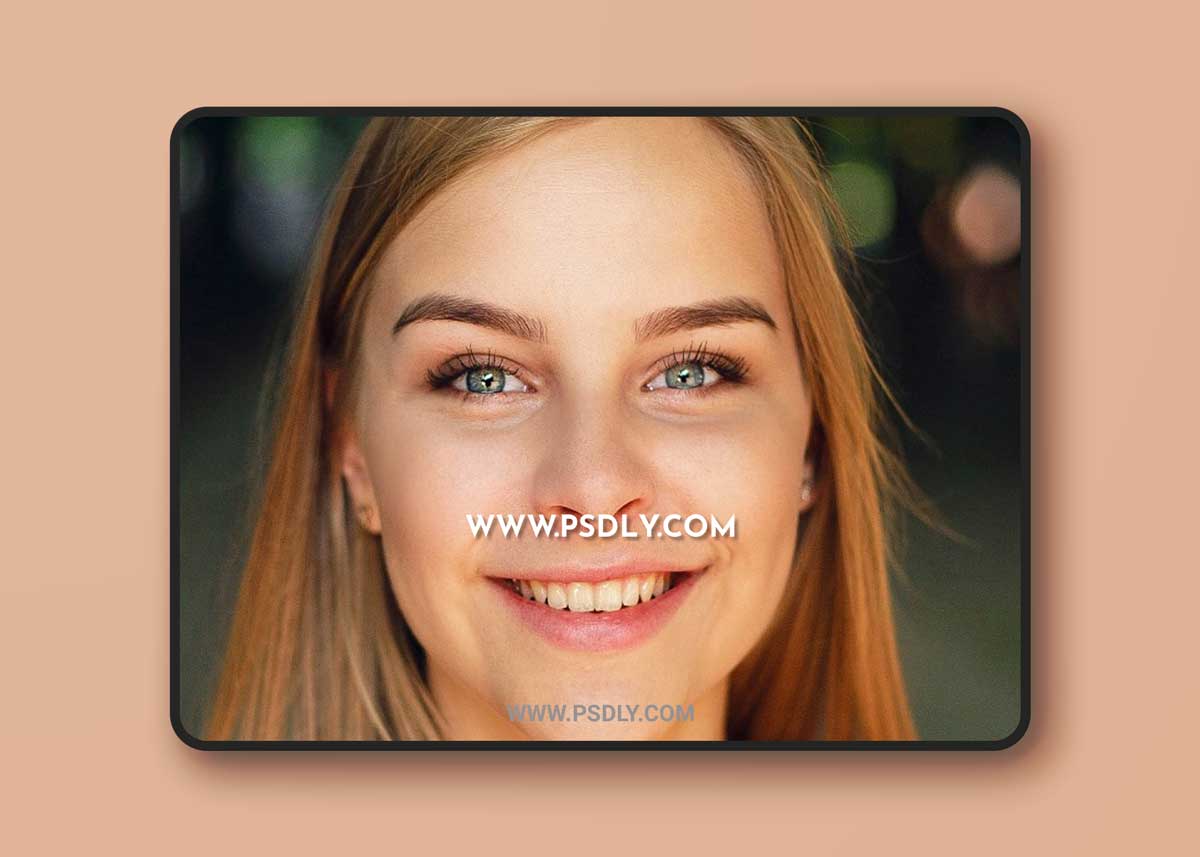
00:14 How to Remove Freckles in Photoshop
00:22 Duplicate background layer
00:28 apply surface blur
00:47 keep radius : 40 pixels and threshold : 30 levels
01:09 Duplicate background layer again
01:18 Apply Dust & Scratches filter.
01:35 Keep radius: 18 pixels & Threshold: 2 levels
01:45 Add Gaussian blur to layer with radius of 9-10 pixels
02:00 reduce opacity of the layer
02:16 Group both layers
02:25 Double click the group layer to open the blending options window.
02:36 select underlying layer.
02:49 Hold the Alt key and drag the white slider
03:04 this we will partially hide the gray portions and achieve a better blending with skintones & skin texture
03:16 now hide the effect using layer mask.
03:24 with layer mask selected, take soft white brush and paint on skin to reveal the effect.
03:34 This will reduce the freckles and lighten the spots
04:33 Almost freckles are gone, now take spot healing brush and remove any visible spots
05:57 That’s it. We’re done.