How to install:
– Drag’n’Drop into 3dsmax viewport
or
– 3dsmax > Scripting > Run Script > select RizomUV bridge MZP file
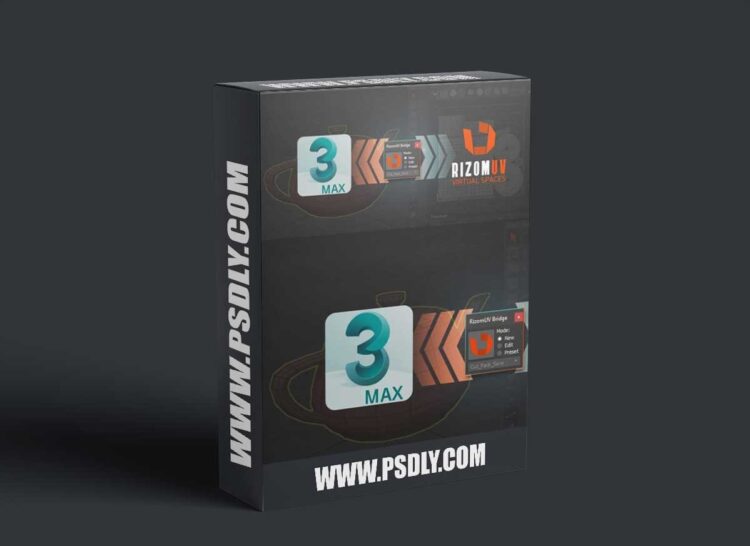
After setup, you will see the RizomUV icon at the main toolbar of 3dsmax application.
(Sometimes administrator rights needed)
How it works:
In 3dsmax :
– Select object or multiple objects
– Select editing mode
– Press a button with RizomUV unfold logo
In RizomUV:
– Create or edit UVs
– Press Save
After pressing Save button, RizomUV – will be closed, 3DSMax window will reappear and UVs will be assigned as modifier(s) on object or objects.
Buttons description:
– Big button with RizomUV logo – send selected objects to RizomUV, objects must be editable poly, if you have an modifiers stack – script will collapse it to editable poly automatically. So be careful a.
– Right Mouse Button (RMB) click on mode options(new,edit,preset) open current Lua script with notepad. So you can edit it and save, or save as a new preset.
– RMB click on dropbox (presets list) – reload/update presets list.
How to edit a preset file:
– In RizomUV open a Script and Command log window (default shortcut “L”)
– And you will see a log for changed commands/parameters, so you can select necessary lines and copy/paste them into a preset file, and that’s it.